Materials…
A Material carries what a SketchUp material can't: a code, a section hatch, a density, a thermal conductivity and an IFC material. It points at a SketchUp material for how it looks, so two bricks that look the same but cost differently are one SketchUp material and two Materials.
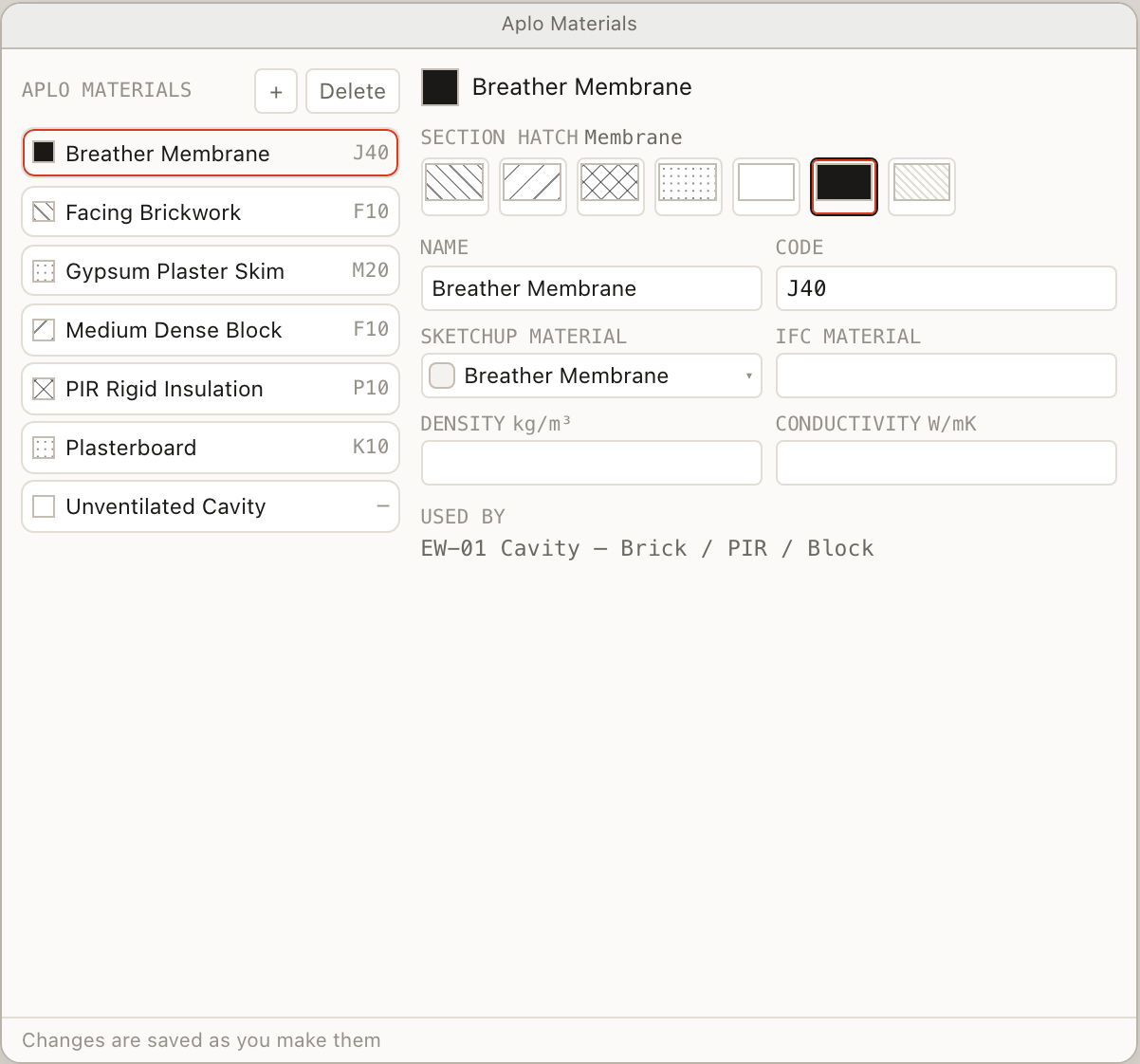
One record, shared by every type
Window Types picks its frame, Sash, glass and Infill Panel from the model's Materials, so an edit here reaches every type that uses the material. Used by lists them before you change anything.
Pick how it looks
The SketchUp material is picked the same way as in Window Types: from the materials in the model, or from SketchUp's own collections, Wood, Glass, Metal and the rest, with a swatch for each and a search. A material picked from a collection is added to the model.
Every field saves as you leave it
There's no Save button. Each field is saved when you leave it and each hatch when you pick it, one undo step each, and the footer says what was saved. + adds a new Material straight away. Double-click one in the list to rename it, and Delete takes out one no type uses. While a type uses it, Delete is greyed out, and Used by names the types.
How it's used
| Input | What it does |
|---|---|
| Materials… | Opens the dialog, from the menu, the Aplo Architecture toolbar or Window Types' Materials |
| Click a material | Selects it for editing |
| + | Adds a new Material |
| Double-click a material | Renames it |
| Delete | Deletes the selected Material, if no type uses it |
| Section hatch | Sets how it's drawn where it's cut |
| SketchUp material | Picks how it looks, from the model or SketchUp's collections |

For SketchUp on Windows and macOS.
An early build, so expect rough edges.
Architecture Tools are free during the Beta. Modelling Tools stay free.