Seeing what a click will do
Using Trim/Extend to T on a test model this afternoon, I picked a line as the boundary and could barely tell that I had. The red I'd drawn over it was broken up by the line's own black edge, a few pixels of each, all the way along.
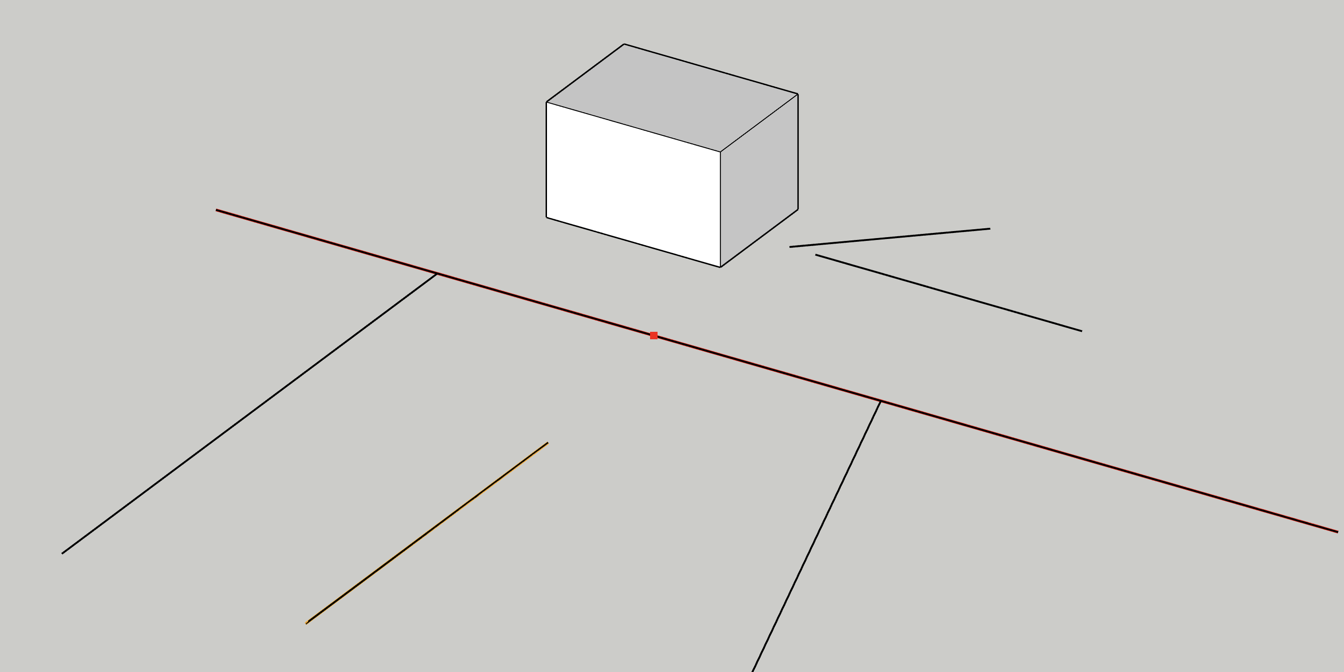
The cause was where I drew it. The highlight sat in 3D exactly on top of the edge it marked, so the two fought over which one was in front, and neither won cleanly. Drawing it flat on the screen instead puts it above the model every time.
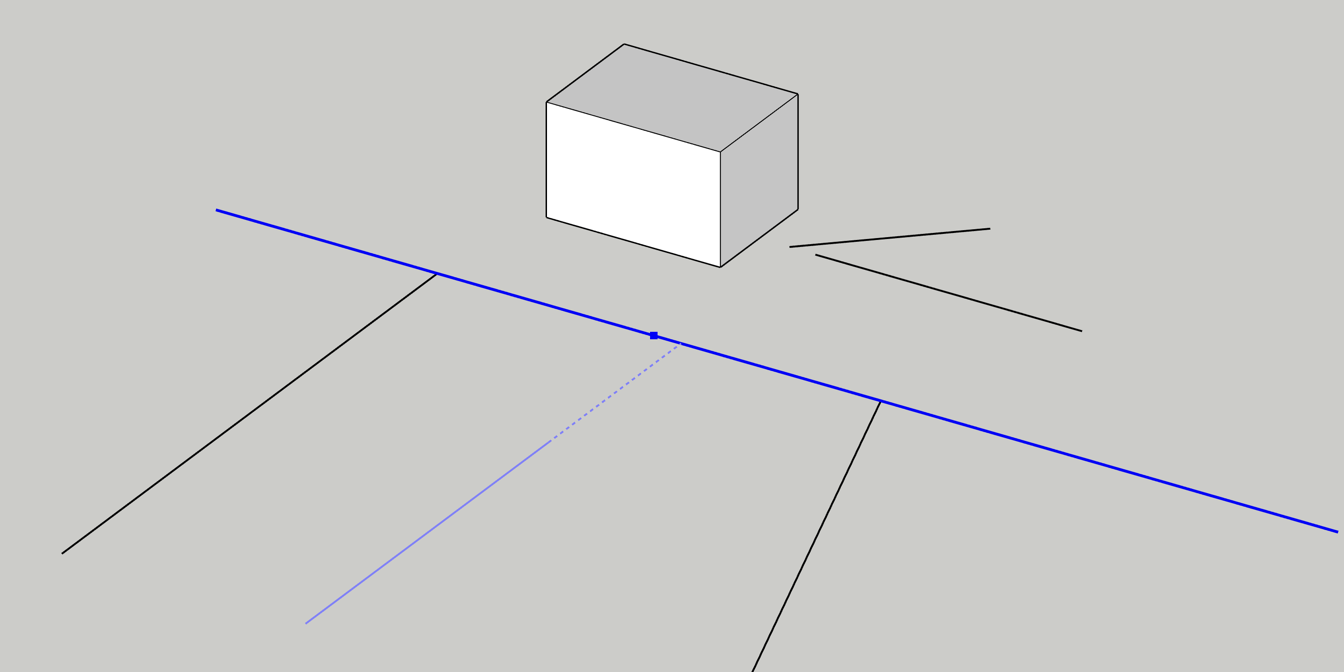
Once I could see the pick, I could see what was still missing: what the click would actually do. Revit pre-highlights whatever is under the cursor before you click it, and I'd copied that, but only the line itself. Now the tool also draws the result. The line stays as it is, and the piece the trim adds or cuts off is dashed, so you see an extension reach the boundary before you commit to it.
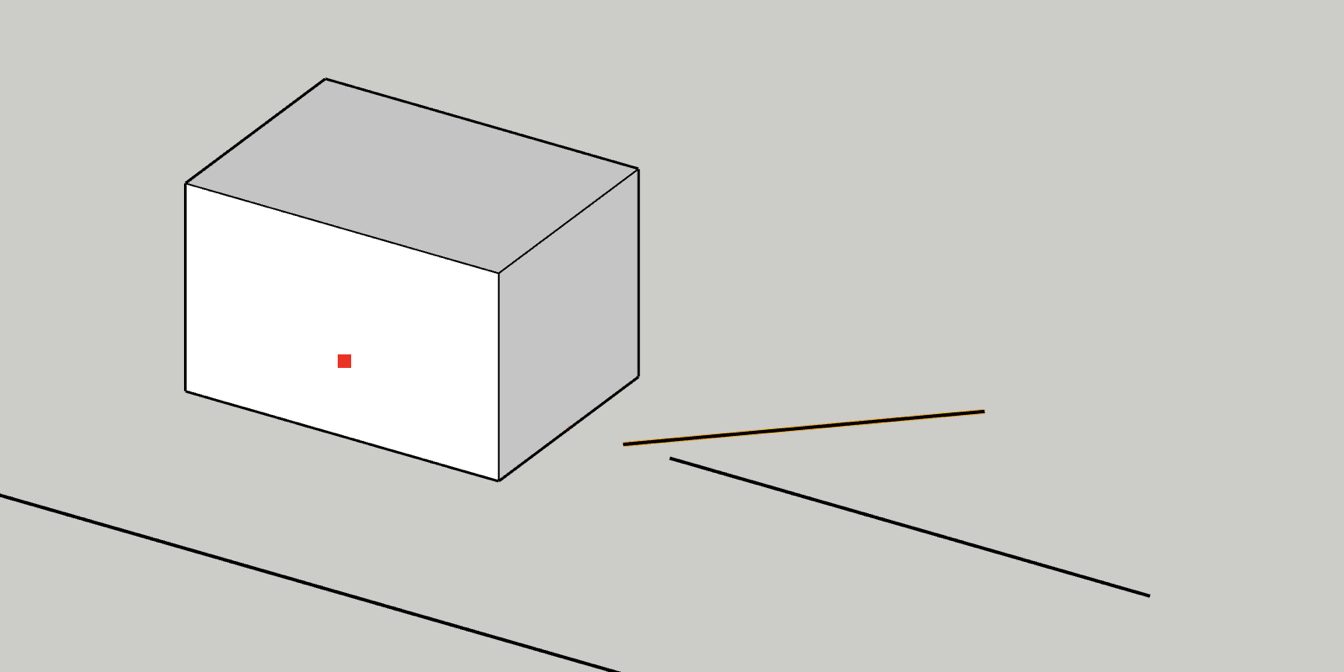
The box was worse. A group is joined along a line down its middle, so that's what the tool highlighted ... at floor level, inside the box, where it couldn't be seen at all. Picking a box showed nothing but the dot where I'd clicked.
Now the face you point at is the boundary. It's outlined, and a line brought to it stops on that face, which is what I'd expect when drawing up to a box. A wall brought to it still meets the middle, because that's the reference for the T join.
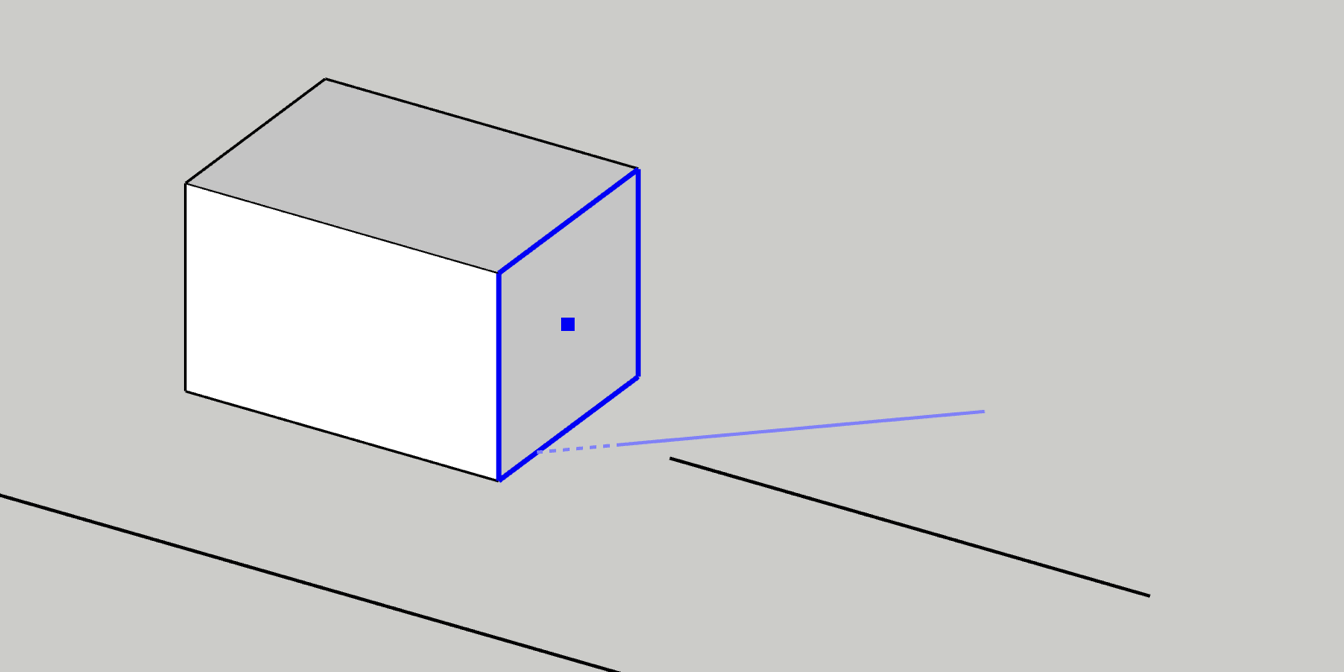
The last change is the colour. I'd used red and orange, and red is also SketchUp's X axis. Everything in SketchUp that's selected is blue, so a pick now uses the selection colour from your style, full strength once picked and a lighter tint under the cursor. My first try drew the hover at one pixel, and it simply disappeared into the black edge underneath.
All of this is in today's 0.3.0 Release. None of it changes what a trim does to the model, only whether you can see it.